Many folders, one library
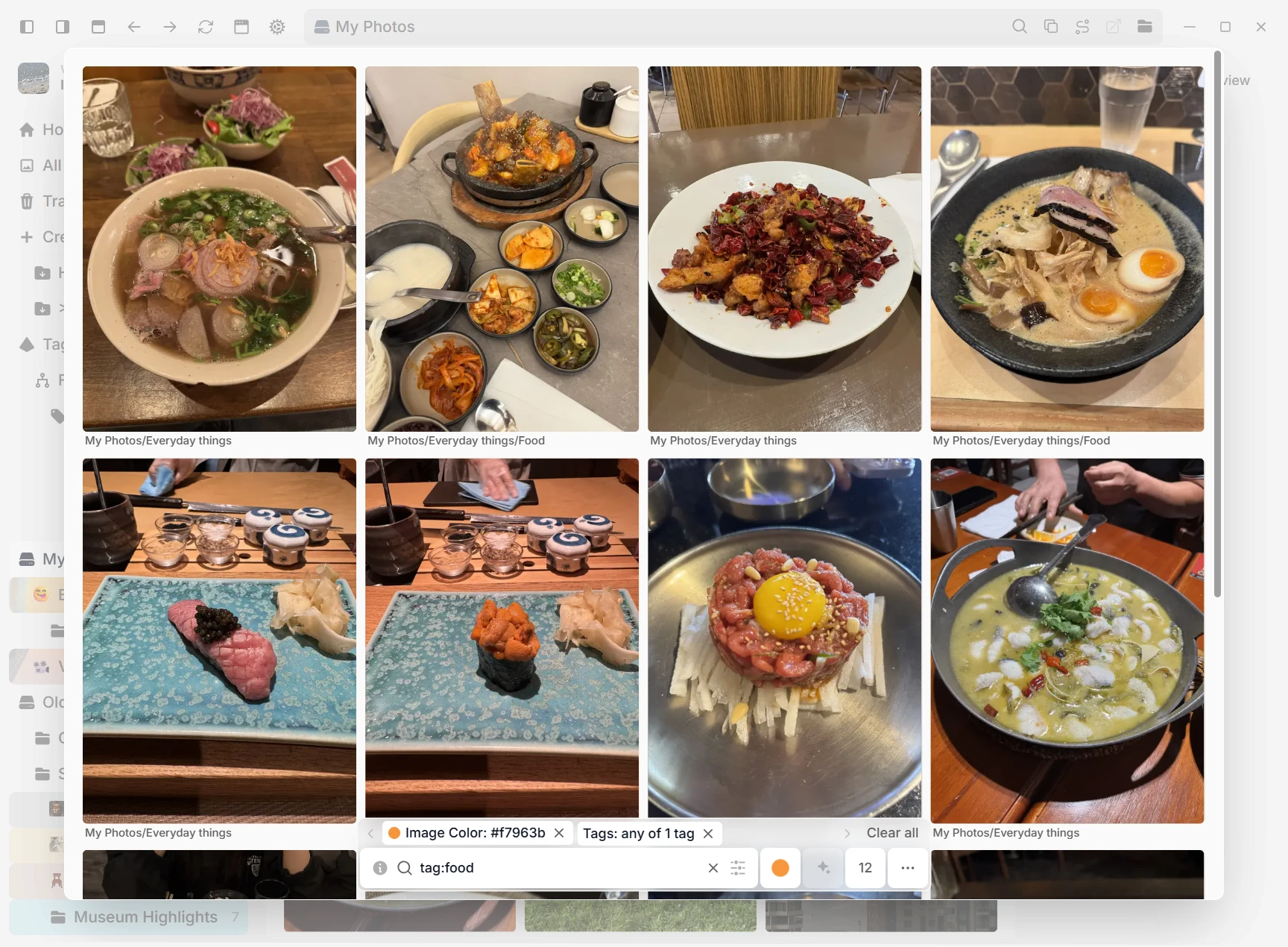
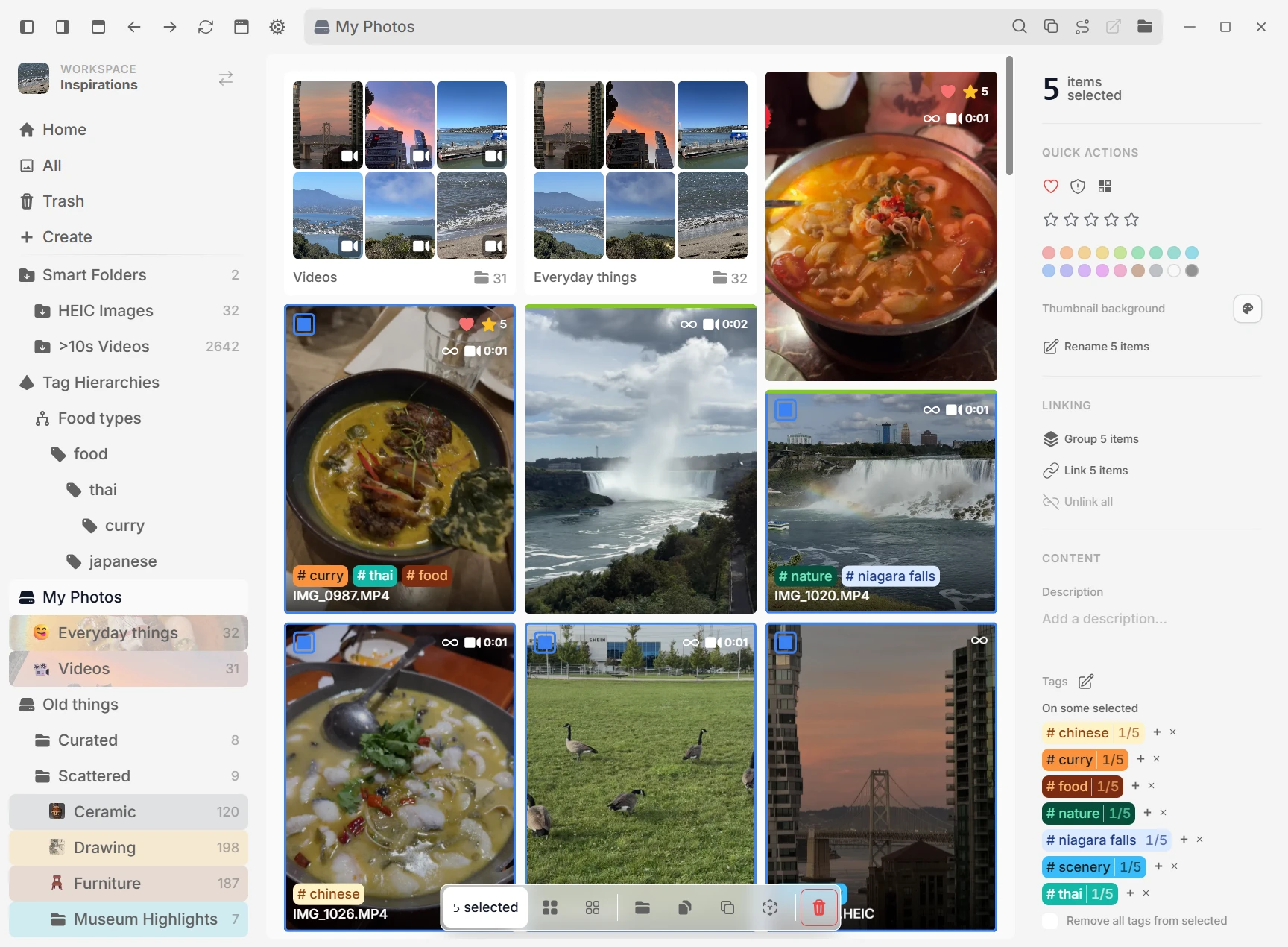
Point a single workspace at several folders at once, even across different drives. refern indexes them together while every file stays exactly where it is.
From saving your first reference to making something with it. Explore the tools that help at each step.
Have images spread across folders and drives? Browse them all in refern. Add tags like “poses,” “light,” or a project name so you can find them again.
Point a single workspace at several folders at once, even across different drives. refern indexes them together while every file stays exactly where it is.
See an image you want to use later? Save it with the free refern Clipper. Add a tag as you save. The web link stays with the image, so you can go back to its source.
Press a global shortcut to capture the screen under your cursor and save it directly into a folder in your workspace.
Bring over Eagle folders, tags, and every file type allowed by your workspace settings. Turn PureRef 2.x boards into editable canvases, or bring in Allusion libraries and tags. Your source library stays as it is.
Reads embedded keywords, ratings, descriptions, and sources (EXIF, IPTC, XMP) as you add images.
Let one physical file appear in multiple folders without duplicating it. Every linked copy shares the original media and metadata, and Eagle imports preserve multi-folder placements automatically.
Bring back a reference you saved weeks ago, or spot something new in your own files.
Need a pose, a color, or a certain look? Search by tag or color. Pick an image to find others that look like it.
Describe what you want, like 'dramatic lighting', even if nothing is tagged. Search your whole library or stay inside one folder. There is no fixed result limit.
Keep related images together. Build a tag tree for subjects, styles, or projects, then use it to narrow your search.
Find more with less hand tagging. Auto Tagger can use your graphics chip to suggest tags and read text in images. You can also set up Search by meaning without adding general tags. It all runs on your device.
Marquee select across your tags, restyle or delete a whole block at once, and pull a usage count for any tag when you want to know what is actually earning its place.
Hover over a grid item and press T to try Quick Tags. Apply tags or saved tag sets to one item or a selection. Keep each file's other tags, and undo a change if you need to.
Need more ideas? Go back to your library and add more images to the same board.
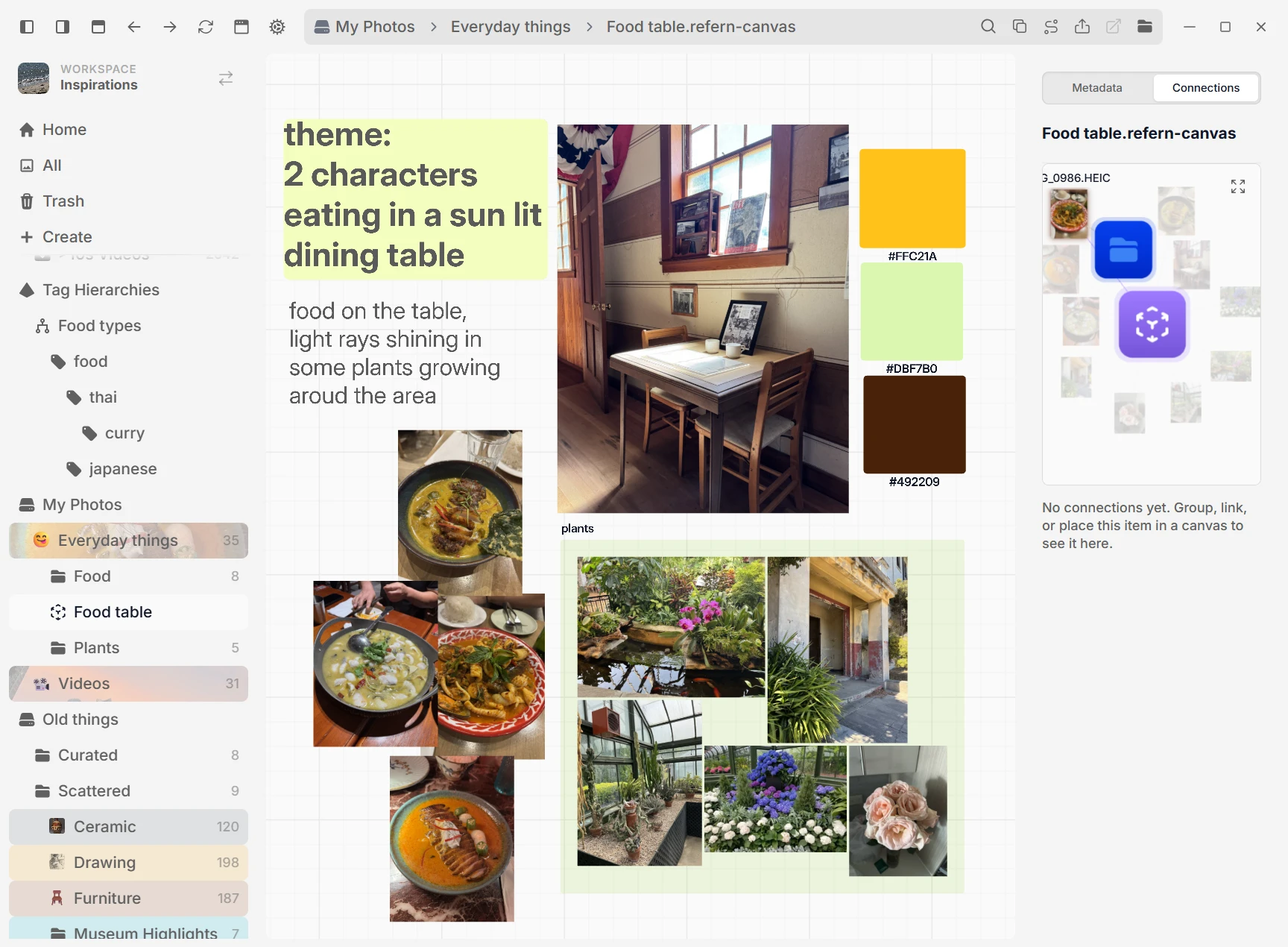
Drag images onto a board. Move them around, place them side by side, and add notes. Try out colors and poses for a new character, or plan the feel of a room.
Right-click an image on the canvas to fan out visually similar references, then pick one to place beside it.
Crops, groups, and the canvases an image lives in all stay connected back to the source.
Sort any grid randomly, then shuffle again whenever you want a new mix of references.
Keep a reference window on top of your drawing app, or put your board on a second screen. See what you need without switching back and forth.
Pin any window on top, dial down its opacity, and click straight through it while you work.
Pop any image or canvas out into its own window. Lay references side by side, spread them across monitors, and keep working in the main app.
Select files, then copy them to the clipboard or drag them into another app. You get the original files. Open a file in your usual app, or choose the app you want.
Practice with your own references and track sessions on a calendar. Keep notes, see your streaks, and link the work you made. Add work to any day, even when you did not use a timer.
Copy a link to a folder, canvas, or file and keep it in your project notes. Open the link to jump back to that spot. It works even when refern is closed.
Pause a pose, read a page, or try a crop. Explore what is inside your files without leaving your library.
Videos live beside your images. Scrub on hover, step frame by frame, loop or export an A-B section, and play clips on a canvas with independent audio and optional muted autoplay.
Play, pause, step frame by frame, scrub the timeline, and change playback speed instead of waiting for a loop.
Turn on Documents for a workspace and PDFs get first-page grid previews, then open inside refern with continuous scrolling, search, text selection and copy, print, view rotation, page controls, and zoom.
Keep images, video, PDFs, and other work files in one grid. Pick which file types each workspace includes. AVIF images keep their clear backgrounds in previews. Open files in your usual app, or choose another app.
Crop and adjust brightness, contrast, and color without ever touching the original file.
Flag a file as Pixelated and it renders with hard, crisp edges at any zoom, in the grid, the viewer, and on the canvas. No more blurred upscales, and is:pixelated finds every sprite again.
Set up a library that suits you. Choose how it looks, where its data lives, and what stays out of view.
Switch between masonry, horizontal, and justified layouts, then tune item size, spacing, and the metadata shown below each reference.
Set a file's grid thumbnail to Default, transparent, or a custom color without changing the source. Apply the same matte to an eligible file selection in one pass.
Browse, search, and edit libraries with a million items or more. Load small parts as you go, select across the full results, and track large jobs as they run. Speed depends on your files, drive, and computer.
Hide a folder, or a whole content root. It stays indexed but drops out of search, grids, pickers, and counts, so drafts and private material stay out of the way. One click brings it back.
Keep a large library on a slow drive while its database, thumbnails, and backups live on a fast SSD. Changing the generated-data location leaves original images in place.
If a library's database is ever lost or corrupted, refern restores it in one click from an automatic backup or a refern export.
Choose English, Simplified Chinese, Traditional Chinese, Spanish, Brazilian Portuguese, Korean, Japanese, French, German, or Italian during onboarding or in General Settings. Your choice is saved per profile, and non-English translations are currently in beta.
Use the whole app free for 30 days. Add a folder, make a moodboard, and try it on your next project. No card needed.
Download refernSee price and license details