Free notan generator
A notan is a simple study of light and dark shapes, often just black and white. This tool turns any photo or artwork into a notan or a 3 to 5 value study, right in your browser.
Or drop or paste an image. It stays on your device.
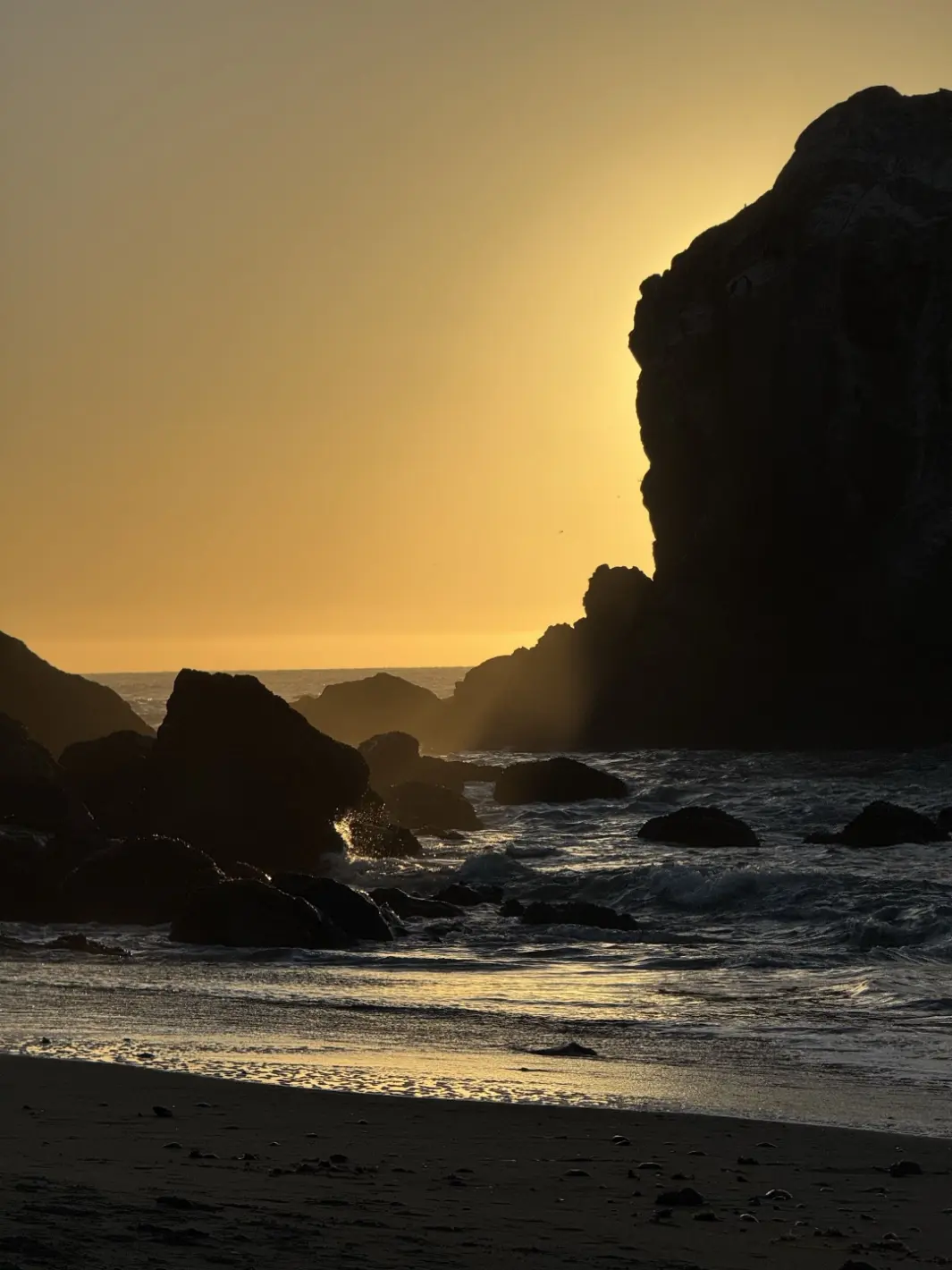
Light and dark split
Working...
ThresholdAuto
Move right to make more of the image dark. Move left to make more of it light.
Blurs the image first, like squinting, so small details merge into big shapes.
1065 × 1420 pixels, as shown.
How to use a notan study
- Start with 2 values. Look at the big black and white shapes. If the picture still reads, your composition is strong. If it turns into noise, the shapes need work.
- Add a middle value. Switch to 3 values to see light, mid, and dark. Many painters plan a painting this way before they mix any color.
- Squint to check. Squint at the original image. Squinting hides small details, just like the Simplify shapes slider. The big shapes you see should match the notan.
- Check the balance. Look at the light and dark split under the image. A 50/50 split can feel flat. Many artists let one value lead, with a split like 60/40 or 70/30.
- Flip it. Flip the image to see it with fresh eyes. Problems in the design are often easier to spot in the mirror view.
Common questions
What is notan?
Notan is a Japanese word for the balance of light and dark. In art, a notan is a small study made of flat light and dark shapes, usually just black and white. It shows you if the big shapes of a picture work before you add color or detail.
What is the difference between a notan and a value study?
A notan uses 2 values: light and dark. A value study uses more, often 3 to 5, to show light, middle, and dark tones. Use a notan first to test the design. Then use a value study to plan the light and shadow. This tool does both. Pick 2 values for a notan, or 3 to 5 for a value study.
How many values should I use?
Use 2 values to test your composition. Use 3 values (light, mid, and dark) to plan most paintings. Use 4 or 5 when you need to tell close tones apart, like a pale sky and a light wall. More values show more detail, but the big shapes get harder to see.
How do I choose the threshold?
The tool starts on auto. With 2 values, auto picks the split that best separates the dark pixels from the light ones. This is called Otsu's method. With 3 to 5 values, auto uses the same idea to fit each split to the tones in your image. Move a slider right to make more of the image dark, or left to make more of it light. Stop when your main subject reads as one clear shape. Press Reset to auto to go back.
Does this tool upload my image?
No. Your image stays on your device. The tool works inside your browser, and nothing is sent to a server. You do not need an account.
Can I use the notan generator on a phone or iPad?
Yes. Open this page in your phone or tablet browser, tap Choose image, and pick a photo or take a new one. The tool shrinks large photos so it stays fast. Tap Download PNG to save the result.
How do I make notan art from the result?
Download the PNG and use it as a guide. Copy the big shapes onto paper, then fill the dark shapes with ink, paint, or a marker. Keep the edges simple and leave out small details. You can also cut the dark shapes from black paper and glue them onto white paper. This is a classic notan exercise.